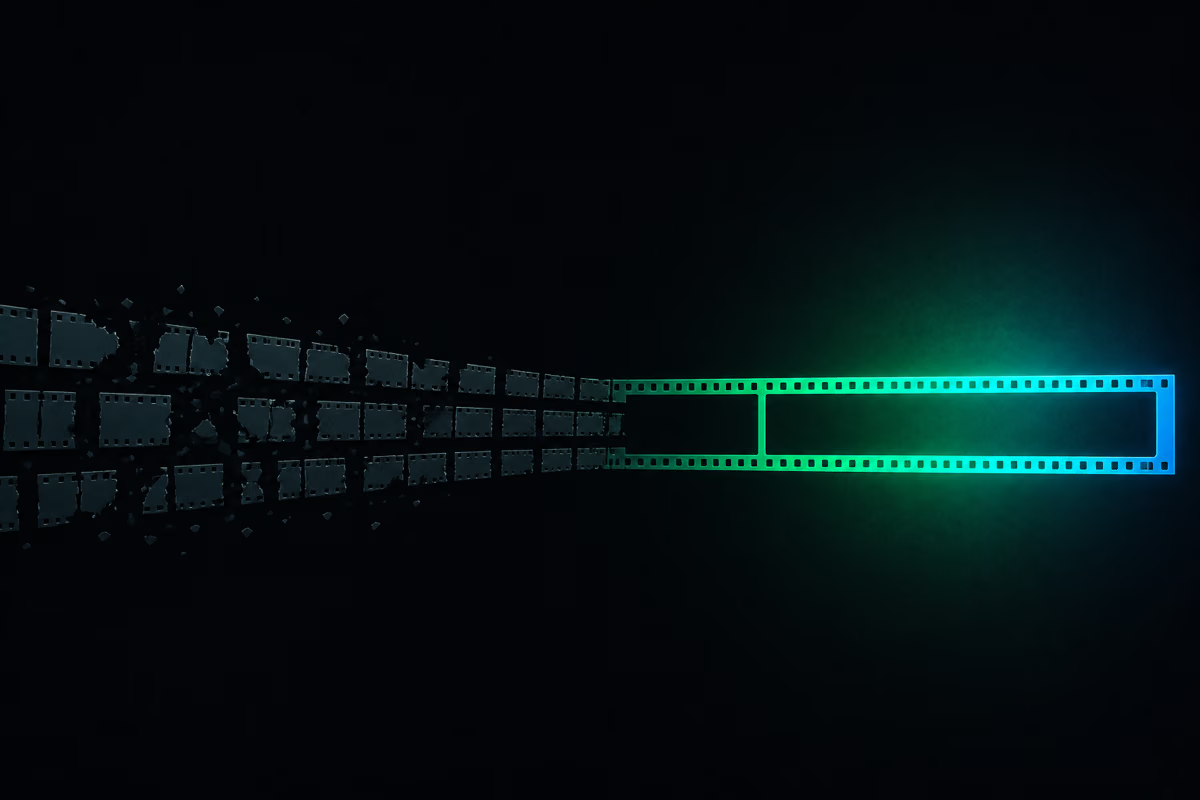
Claude can now edit a video almost from start to finish. You drop in a raw clip, and the tools cut the fluffs and the silence, add animations, throw in captions and render the finished file. You steer it all in plain language — you describe what should happen. Below I'll lay out calmly what this setup consists of, what it really does, and where a human is still needed. (Claude is Anthropic's AI assistant; you write it instructions, and it replies and carries out tasks.)
What editing used to look like
Classic editing is laborious handwork. First the recording — the raw file off the camera. Then you open an editing program (Adobe Premiere, say) and cut out the mistakes, the retaken shots, the dead air by hand. Next you add the animations by hand. Finally you render — that is, assemble everything into a single finished video file — a step that isn't demanding but is also done separately.
Each of those stages ate up time. The new tool setup takes over most of them: you drop in the raw clip, and the trimming, the animations and the rendering happen for you. Let me show you with an example: a fifty-second clip comes down to about twenty-seven seconds — no fluffs, no filler — with animations added on top.
What this setup is made of
At the center, holding it all together, is Claude Code — the tool in which Claude works on technical tasks: it reads files, runs steps, connects other programs to one another. Here it plays the conductor. You can use it in two forms: in the desktop app (a simpler, less intimidating interface) or in a code editor, where you can see all the project files. For editing, the app is enough.
Claude Code reaches for two specialized tools:
- Video Use — handles the trimming. It analyzes the recording and cuts out filler, silence and retaken shots. It can also add animations (through a built-in engine called Remotion) and render the whole thing on its own.
- HyperFrames — a second way to do animations, that is, motion graphics: cards, captions, transitions. I personally prefer this option to Remotion — not because Remotion is weak, but because the results from HyperFrames suit me better visually. Both end the same way: they assemble the animations and render the file.
For the tools to learn these capabilities, you give Claude Code two repositories — a repository is simply a project, a collection of folders and files, that Claude can read through and pull the pieces it needs out of. You paste links to both and ask: "read through these repositories and load the skills I need, so I can hand you a raw file and you'll edit it." The rest happens on its own.
The two steps that really matter
Whichever tool you pick, the order is fixed, and it's the order that decides the result.
Trimming first. Video Use analyzes the recording and shows what it proposes keeping and what cutting: a false start here, a stumble there, a kept ending further on. In this example the clip comes down from fifty to about thirty-two seconds. The tool also asks about taste calls — for instance, whether to keep a trailing "so" at the end as a natural breath, or to remove it. It nudges the cuts up to word boundaries with a little headroom, so they sound smooth.
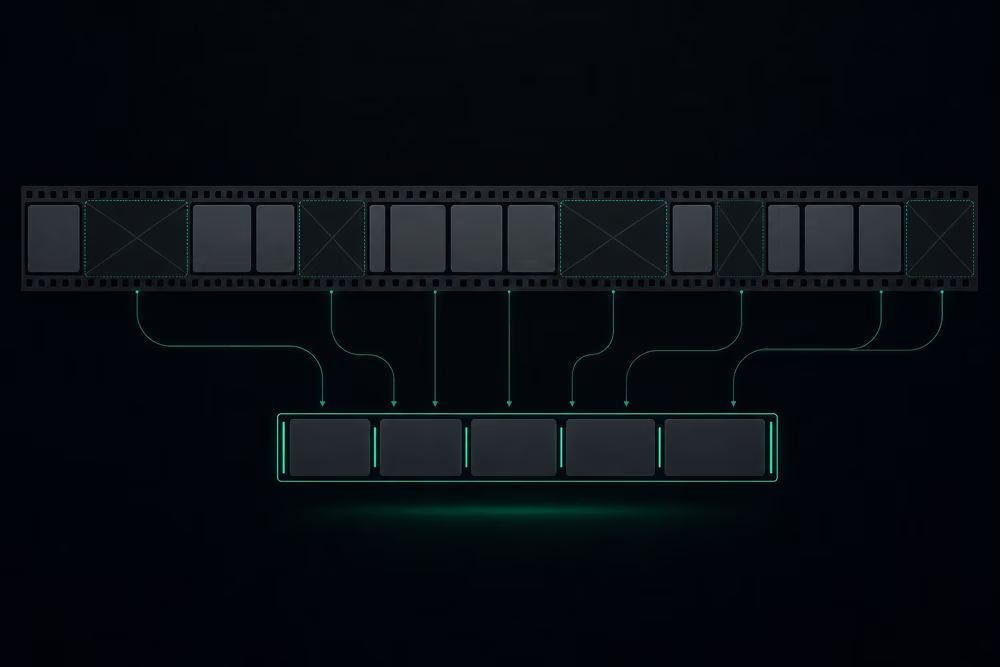
Then the animations — but only after the transcript. Between trimming and animating, the tool produces a transcript, that is, a record of what was said turned into text, with a timestamp on every word. This is key: the timestamp tells you which second a given word falls on, so an animation can be fired at exactly the moment you're talking about it. The record is precise to a fraction of a second.
The transcript can be done by one of three tools: OpenAI's Whisper, a free tool that runs locally on your own computer, or the ElevenLabs service. All three work fine; I reach for ElevenLabs, because in my view it pinpoints the cut points more accurately. To use it, you set up an API key — a private string that authenticates your account with the service — and paste it into a separate settings file (.env), not straight into the conversation. The reason is simple: in a conversation the key would stay in the history, and that's a bad habit from a security standpoint.
Plan first, work second
You don't order animations in a single sentence. You describe precisely what should appear and when: at the start a "liquid glass" card on the left with captions sliding in karaoke-style, elsewhere an animation showing the cutting of mistakes itself. Then you switch Claude Code into planning mode — the tool doesn't start working right away, it lays out a plan instead: what card it'll make, what'll be on it, which second it'll appear at. Only once the plan checks out does it get the go-ahead to execute.
This step has a concrete point. Building animations costs tokens — the units a model's work is billed in, roughly fragments of text — and it eats up time. The plan lets you catch a misunderstanding before the tool renders something wrong. In this example, still at the planning stage, I added a closing scene: the frame with the face shifted to the right, a "thanks for watching" caption on the left.

The first version is never perfect
Once the first version renders, the rough edges show: the card covers the face, an unwanted grid appears in the background, the framing at the end came out other than it should. That's normal. Then you describe the fixes specifically — "shrink that card and trim the right side so it doesn't cover the face," "remove the grid from the whole piece" — and the tool applies the changes. The built-in timeline helps too: an editor where you can see the individual animation elements and move, shorten or delete them; a change made by hand is reflected in the code, and Claude Code picks it up.
I'd compare it to teaching a child to ride a bike: at first you hold the handlebars and correct, and over time it rides on its own. It's the same with the tool — it has to learn your style. Once you've edited a few similar pieces, you can pin down their style in a separate guidelines file and refer to it every time. That's exactly when "drop in the raw file and the rest takes care of itself" starts to really work.
It's also worth making the tool verify its own work — I ask it for screenshots of the individual scenes, so it checks for itself whether they look right, instead of declaring it done blindly.
What it costs and what follows from it
The whole thing — every instruction, each new version of the animations, the generated files — used about 238 thousand tokens in this example. Let me be straight: not catastrophic, but not nothing either, because this kind of work consumes tokens. Hence the emphasis on a precise description and the planning stage — the more precisely you steer the tool, the smaller the chance it heads the wrong way and wastes your tokens and your time.
The sober conclusion is this: it's not a button that does everything for you, but a shift in the work. Cutting and animating by hand is replaced by precise instruction and correction. The first pieces need steering; only repetition delivers real savings. If you want to try it, start with one short clip and one style — and treat the first attempt as teaching the tool, not as a finished result.